01
Start from the guest’s seat
Scan the real table QR with a phone that does not depend on your admin session. Check the venue, language, prices, availability and visible table or zone.
- 1Test at least one iPhone and one Android phone.
- 2Open the QR from the camera, not the dashboard.
- 3Confirm that the location matches the physical table.
02
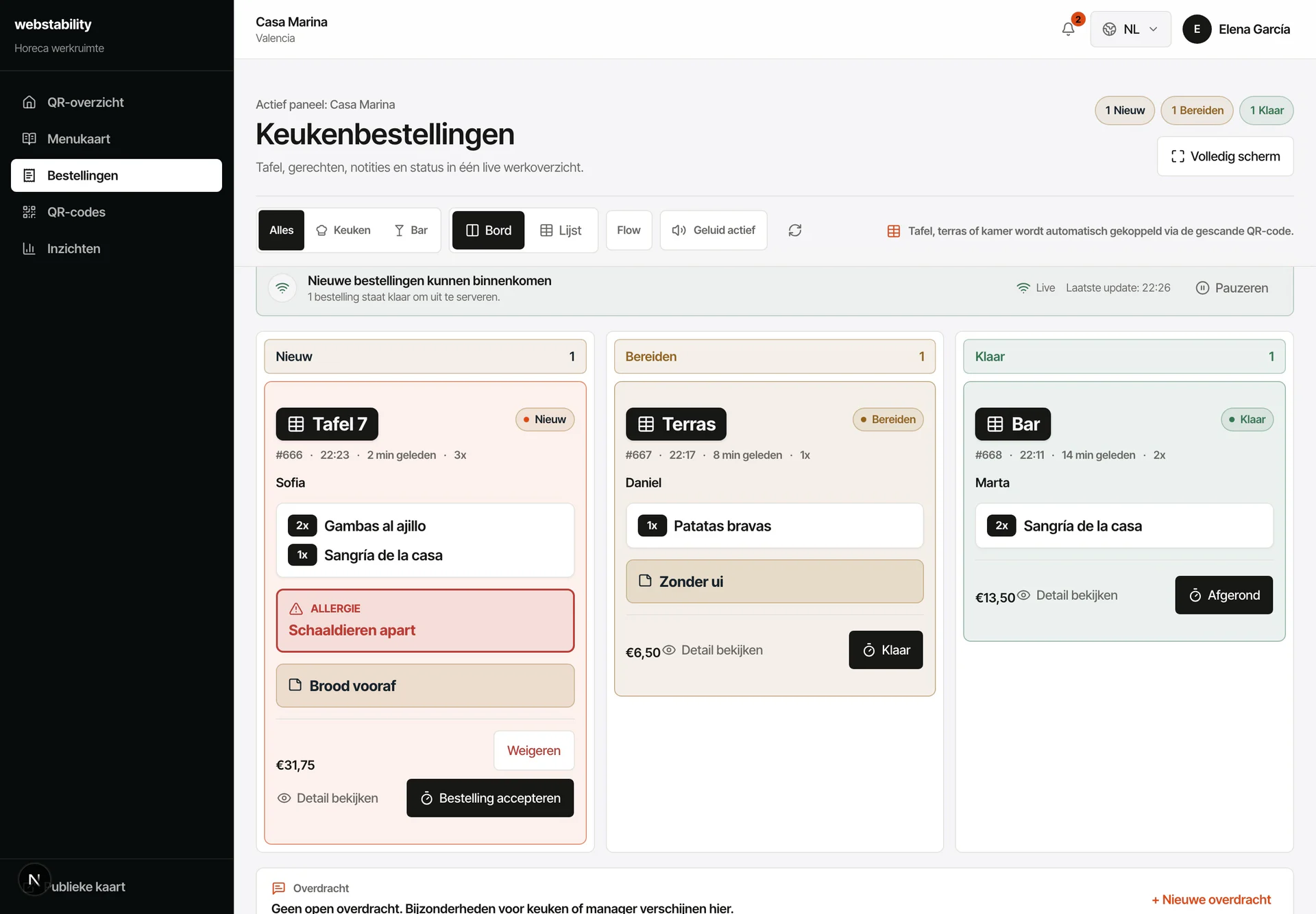
Follow the same order in the kitchen
Place a test order with quantities and a note. Confirm that location, lines, total and time are readable, then move through New, Preparing, Ready and Completed.
03
Test failure and fallback states
Mark one dish sold out, pause ordering and scan a QR without a location. The team should know what guests see and which fallback appears in the kitchen.